
Quick answer: 4K streaming often looks soft or blocky because the video is heavily compressed to fit through your internet connection, and not every “4K” stream is truly 4K at every moment. Common causes are low bitrate, adaptive quality dropping during slow moments, the wrong plan or app, a weak Wi-Fi link, an HDMI limit, or TV settings such as motion smoothing. Most of them can be checked in a few minutes.
Cause 1: Compression and Bitrate
Uncompressed 4K video would need far more bandwidth than any home connection can supply, so every streaming service compresses it. The key number is bitrate: how much video data arrives each second. A lower bitrate means more detail is thrown away, which shows up as blocky patches in dark scenes, smeared textures, banding in skies and shimmering on fast motion.
For context, the services that publish guidance for 4K generally recommend speeds in the mid-teens to mid-twenties of Mbps, while formats such as Ultra HD Blu-ray allow video bitrates several times higher. Streaming services use efficient codecs to make the most of their budget, but the gap is real, which is why a disc of the same film often looks cleaner.
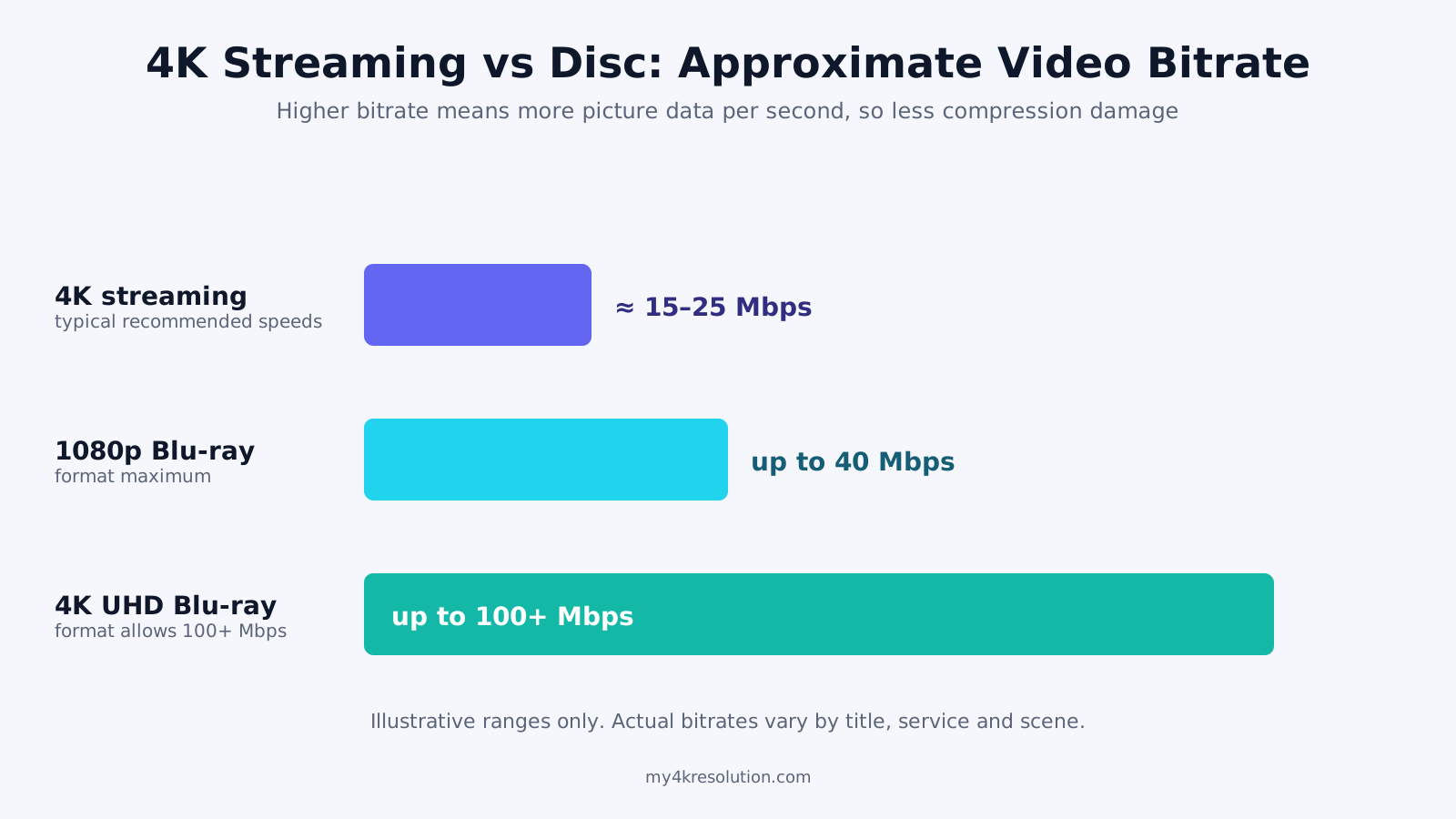
How much data is that? Data use is easy to work out: divide the bitrate by 8 to get megabytes per second, then multiply by 3,600 for one hour.
| Stream bitrate | Data per hour (approx.) |
|---|---|
| 10 Mbps | 4.5 GB |
| 15 Mbps | 6.75 GB |
| 25 Mbps | 11.25 GB |
Those numbers show why services must compress: sending more would multiply bandwidth costs for them and data use for you. See how much internet speed 4K streaming needs for how to size your connection.
Cause 2: Adaptive Streaming Drops the Quality
Most services use adaptive bitrate streaming. If your connection dips, even for a few seconds, the player quietly switches to a lower-quality version of the video to avoid buffering. You may see a soft or blocky picture for a moment, then it recovers. The picture can also start soft while the player tests your connection. If the quality keeps wobbling, the issue is usually your network or Wi-Fi rather than the TV.
Cause 3: The Source Isn’t True 4K
“4K” on a title card only tells you the delivery resolution. Many films were finished at a lower resolution, such as a 2K digital master, and then upscaled for 4K release. Older material and some TV shows may be upscaled too. This isn’t a streaming fault, and good upscaling can still look excellent, but it won’t have the fine detail of a native 4K source. Read native vs upscaled 4K to see how the two differ.
Dark scenes are especially hard. They contain subtle gradients that compression struggles to preserve, so a bright, detailed scene can look great while a dim one shows blocks or banding on the same service.
Cause 4: Plan, App or Device Limits
- Plan tier. Some services reserve 4K for a higher-priced plan. On a lower tier you may be streaming 1080p or less.
- Title support. Not every title is available in 4K, even on the right plan.
- App or device. Older TVs and streaming boxes, some browsers and some apps cap resolution or lack the codec needed for 4K. A TV’s built-in app and a separate streaming device can behave differently on the same service.
- Account settings. Many services have a playback quality or data-saver setting that limits resolution. Check it is set to the highest option.
Cause 5: Your Network
- Wi-Fi, not your plan, is often the bottleneck. A fast internet plan doesn’t help if the signal reaching the TV is weak. Test the speed on the TV or device itself, not just your phone beside the router.
- Use a cable if you can. A wired Ethernet connection is usually steadier than Wi-Fi.
- Shared bandwidth. Other people streaming, gaming or downloading at the same time can push your stream down in quality.
- Router placement and congestion. Distance, walls and crowded channels all reduce Wi-Fi speed and stability.
Cause 6: HDMI and Port Problems
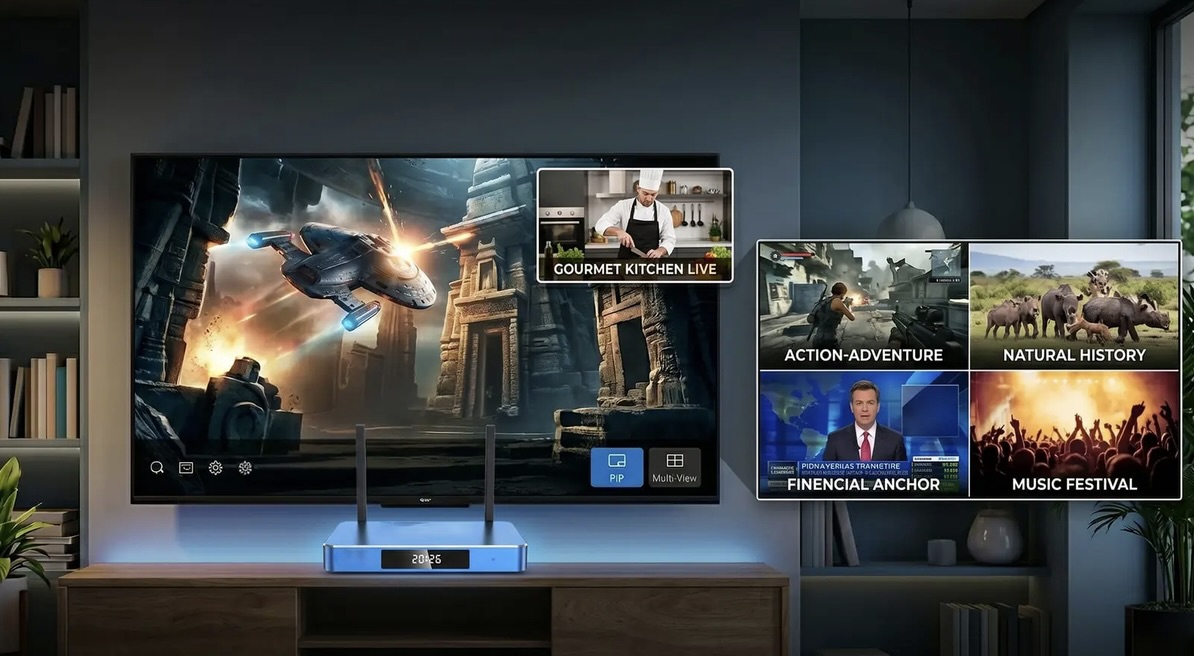
If the stream is 4K but the picture is wrong or limited, the problem may be the link between your streaming device and the TV. Use the TV’s HDMI port that supports the full 4K and HDR feature set (not every port does), check that the cable is rated for your signal, and make sure 4K or HDR output is enabled in the device’s display settings. Our HDMI cable guide and 4K troubleshooting checklist go through it step by step.
Cause 7: TV Picture Settings
Sometimes the stream is fine and the TV is making it look worse:
- Motion smoothing. This makes film look unnaturally smooth (the “soap opera effect”) and can add artifacts. Turn it off or lower it for films.
- Picture mode. Vivid or showroom modes exaggerate contrast and can make compression more visible. Try Cinema, Filmmaker or a similar accurate mode.
- Sharpness and noise reduction. Too much sharpening adds halos; heavy noise reduction smears detail. Keep both modest.
- HDR handling. HDR content can look dim or washed out if the TV or its input is not set up for it. Check the input’s HDR setting.

Step-by-Step Troubleshooting Checklist
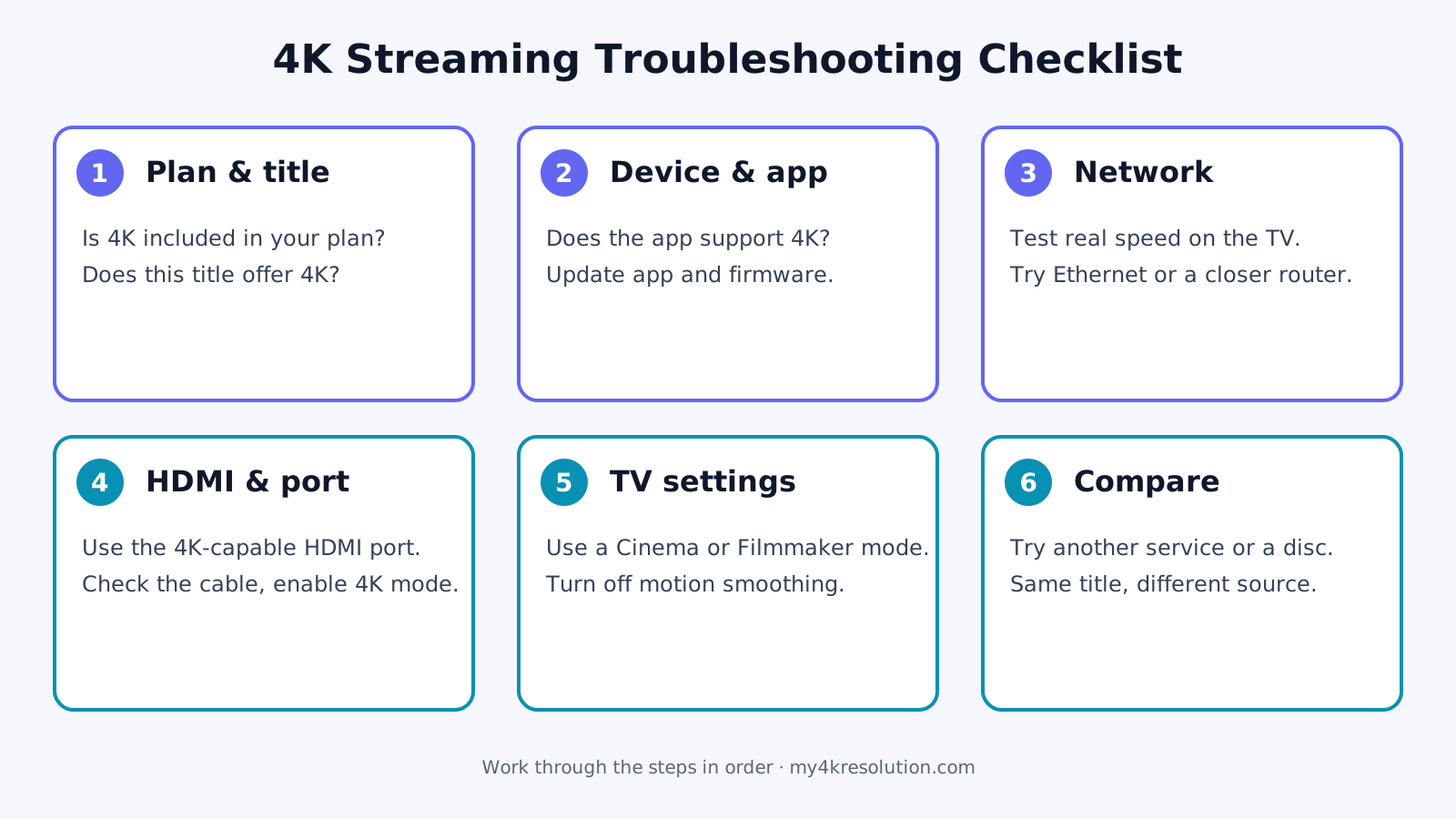
- Confirm 4K is available. Check your plan includes it and the title is offered in 4K. Look for the service’s 4K or Ultra HD label.
- Check the device and app. Update the app and the device’s software, and confirm both support 4K.
- Test the network at the TV. Run a speed test on the device itself, and try Ethernet or move the router closer.
- Check the HDMI path. Use the right port and a suitable cable, and enable 4K output in the device settings.
- Reset the picture. Pick Cinema or Filmmaker mode, turn off motion smoothing and lower sharpness and noise reduction.
- Compare. Try another title, another service or a disc. If one title looks bad everywhere, the source is likely the cause.
Frequently Asked Questions
Why does my 4K stream look blurry?
Usually because the stream is compressed, adaptive streaming has dropped to a lower quality, or the source isn’t true 4K. Check your plan, device, network and TV settings.
Is 4K streaming worse than 4K Blu-ray?
Generally, yes in bitrate terms. Discs can carry much more video data, so they usually preserve more detail, especially in dark or fast scenes. Streaming is more convenient and can still look very good.
How do I know if I’m really watching in 4K?
Many TVs and devices can show the incoming resolution in an info or status menu, and some services show a 4K or Ultra HD badge on the title. Remember that quality can drop and recover during playback.
Do I need faster internet for better quality?
Only if your current connection is the limit. Past the speed a service recommends, a more stable Wi-Fi or wired connection helps more than a faster plan.
Why do dark scenes look blocky?
Dark gradients are hard to compress cleanly, so blocks and banding show up there first. Better source quality and a higher bitrate help, as does an accurate picture mode.
Does a better TV fix bad streaming quality?
A better TV can upscale and process the picture more cleanly, but it cannot restore detail removed by compression.
The Bottom Line
Streaming 4K is a trade-off between quality and bandwidth. Most “bad 4K” problems come from compression, an unstable connection, a plan or app limit, or TV settings, and most of those can be fixed. Work through the checklist in order, and if one title still disappoints, compare it against another source before blaming the TV.
Keep reading: How much internet speed 4K needs · Native vs upscaled 4K · 4K not working? Fix it · Back to the 4K hub
Methodology and Limits
Data-use figures are calculated from bitrate (Mbps ÷ 8 × 3,600 seconds). Bitrates, plan names and device support differ by service and change often, so treat the ranges here as illustrative and check each provider’s current help pages. We have not tested individual services or devices for this article.
