
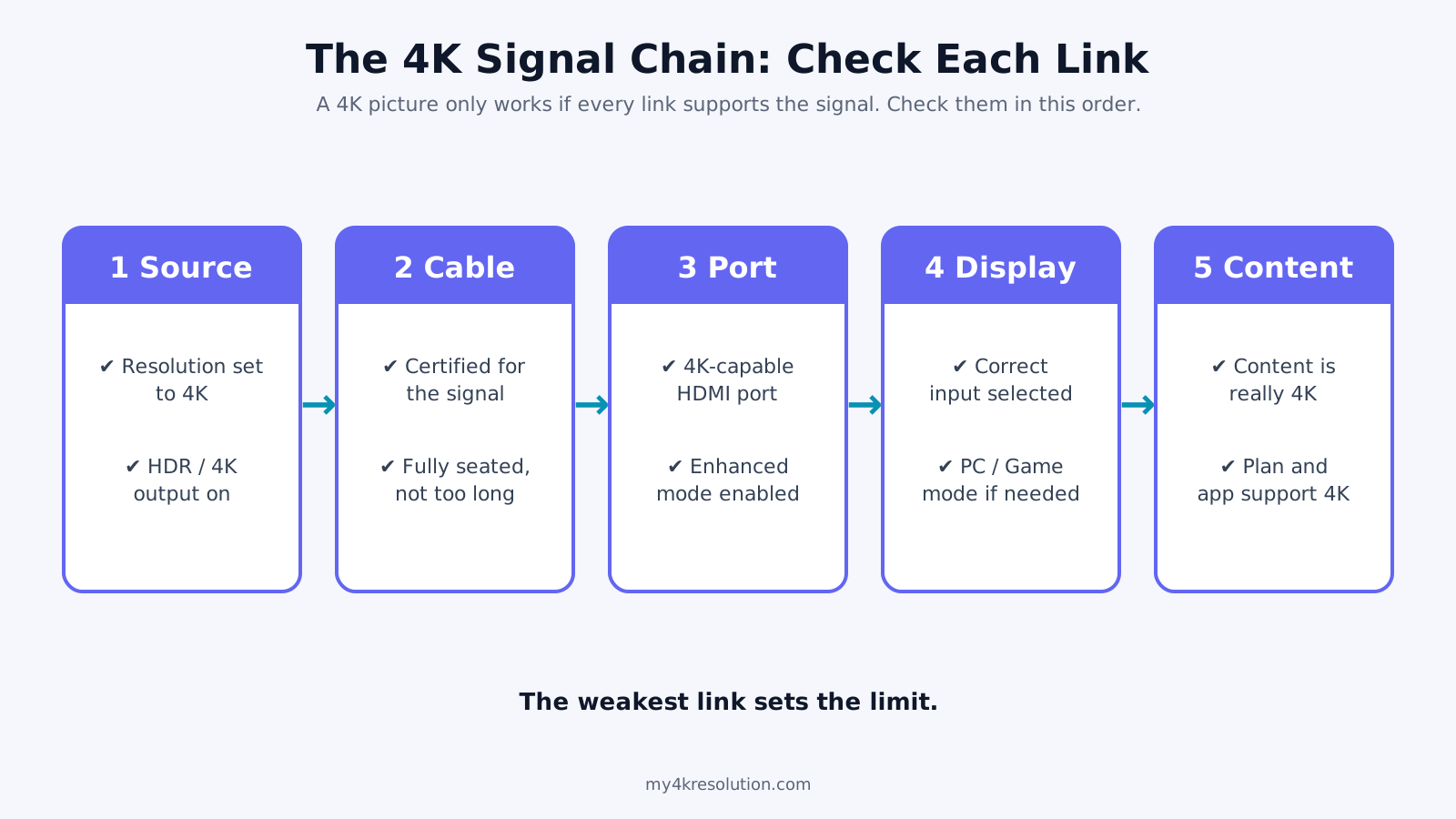
Quick answer: When 4K isn’t working, the fault is almost always one link in the signal chain: the source device, the HDMI cable, the TV’s HDMI port, the TV’s HDMI settings, or the content itself. Check them in that order. The most common fixes are using the TV’s 4K-capable HDMI port, switching on its enhanced HDMI mode, replacing the cable with a certified one, and setting the source device’s output to 4K.
Think in a Signal Chain
A 4K picture travels from a source (streaming box, console, Blu-ray player, PC) through a cable into a port on the TV or monitor, where the display’s settings decide how to handle it. It also has to be real 4K content to begin with. If any one of these links can’t carry the signal, the whole chain drops to a lower resolution, refresh rate or color format, or shows no picture at all. That is why random fiddling often fails and a methodical check usually works.
Quick Fix Chart by Symptom
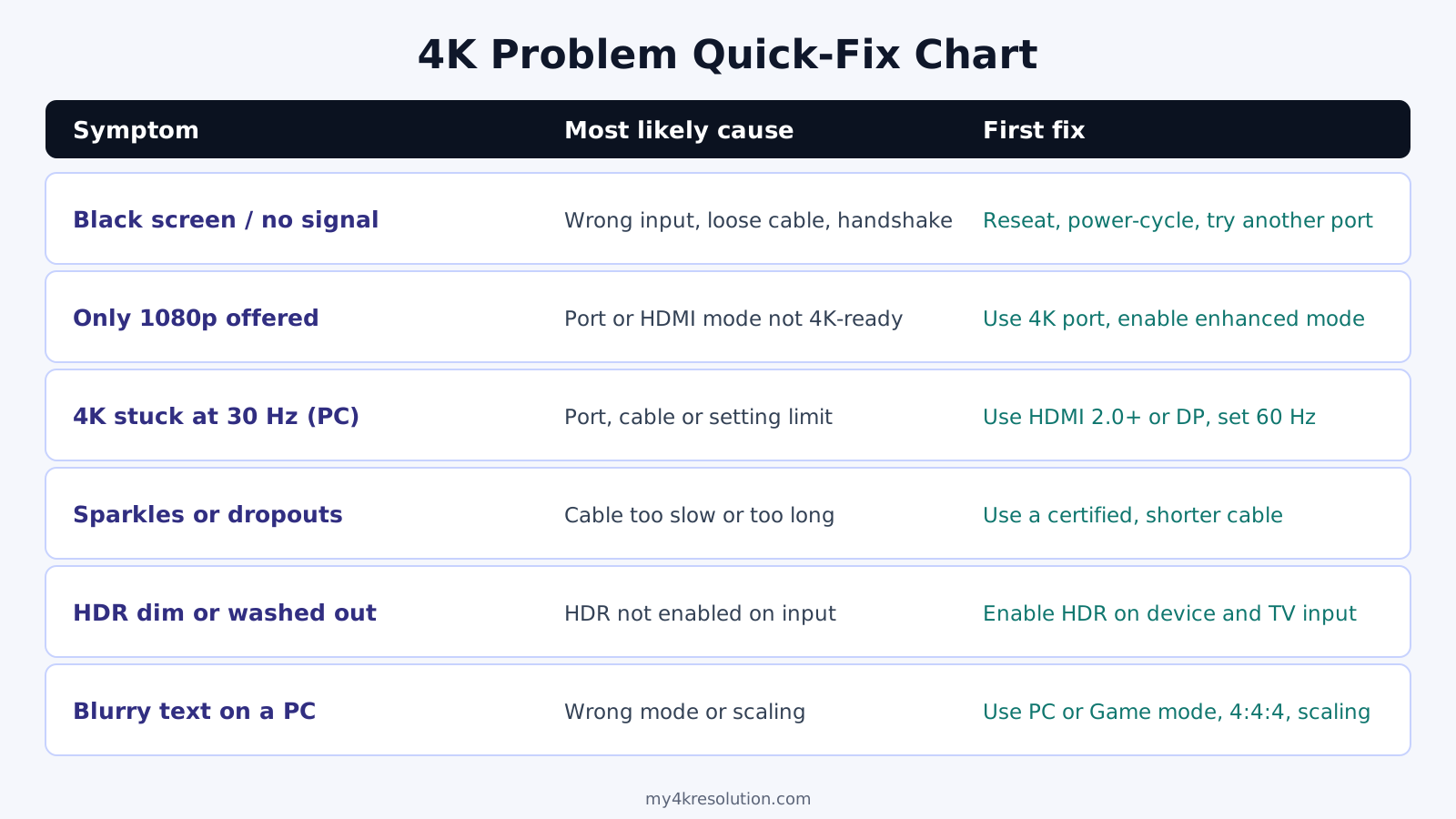
| Symptom | Most likely cause | First fix |
|---|---|---|
| Black screen or “no signal” | Wrong input, loose cable, handshake problem | Select the right input, reseat the cable, power-cycle, try another port |
| Only 1080p is offered | Port or HDMI mode isn’t 4K-ready | Use a 4K-capable port and enable the TV’s enhanced HDMI mode |
| 4K stuck at 30 Hz (PC) | Port, cable or setting limit | Use HDMI 2.0 or newer, or DisplayPort, and set 60 Hz |
| Sparkles, flicker or dropouts | Cable too slow or too long | Use a certified, shorter cable |
| HDR dim or washed out | HDR not enabled on the input | Enable HDR on both the device and the TV input |
| Blurry text on a PC | Wrong mode or scaling | Use PC or Game mode, full color (4:4:4) and scaling |
| 4K option missing in a streaming app | Plan, app or device limit, or the title isn’t 4K | See why 4K streaming looks bad |
Step 1: Power-Cycle in the Right Order
HDMI devices “shake hands” when they connect and agree on what they can handle. A bad handshake can leave you stuck at a low resolution or a black screen. To reset it:
- Turn off the TV and the source device.
- Unplug both from power for about 30 seconds.
- Reseat the HDMI cable firmly at both ends.
- Plug in and switch on the TV first, then the source device.
This simple routine solves a surprising number of “no signal” and wrong-resolution problems.
Step 2: Use the Right HDMI Port and Mode
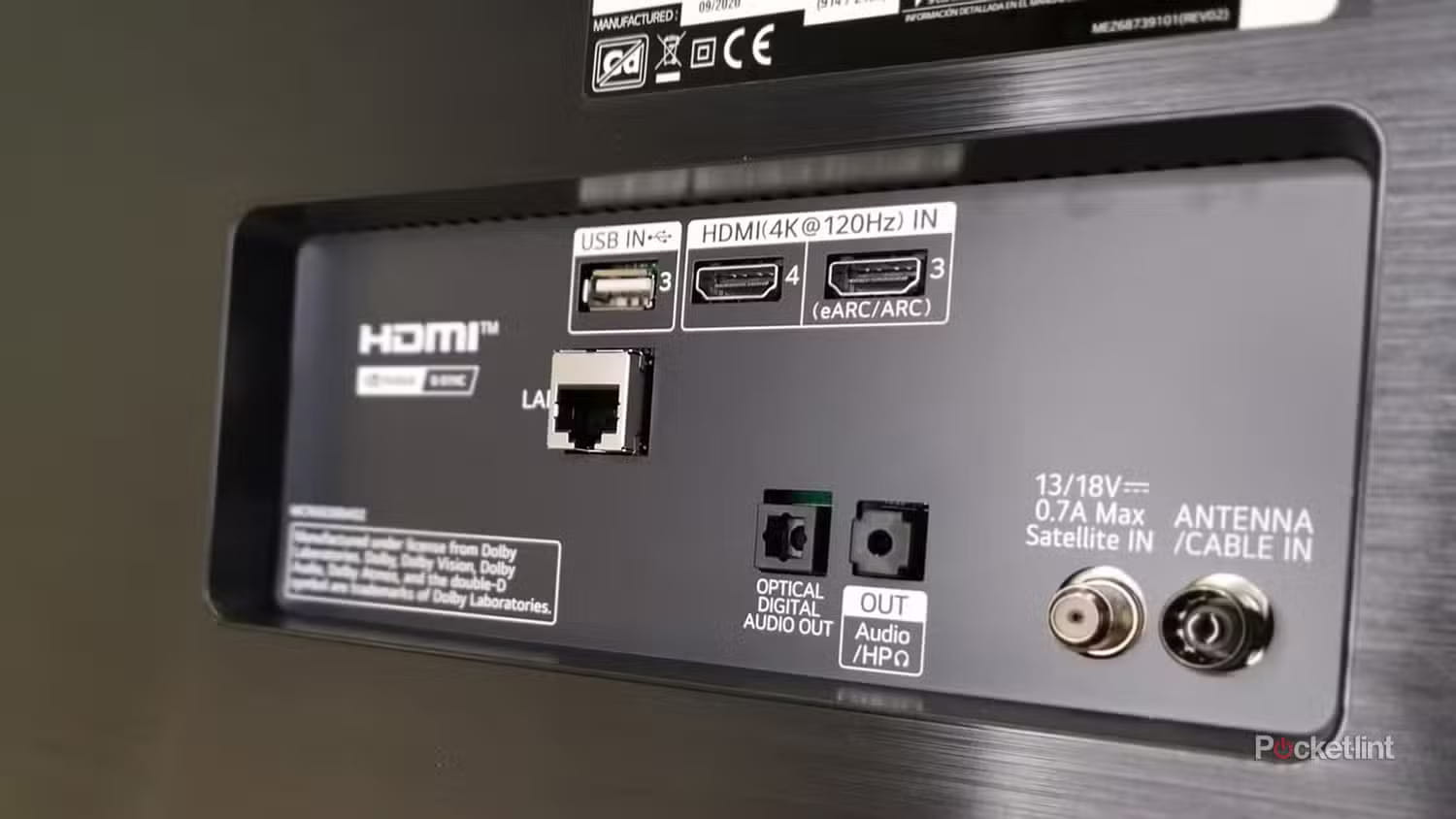
Not every HDMI port on a TV supports the full 4K feature set. On many TVs only one or two ports handle the highest-bandwidth signals, such as 4K at 120 Hz, and they are often labelled (for example “4K”, “eARC” or “HDMI 2.1”). Check the TV’s manual or the labels on the back panel.
Many TVs also ship with an enhanced HDMI mode switched off by default for compatibility. It has to be on for the highest-bandwidth signals, including 4K HDR at 60 Hz. The name varies by brand. Examples include “Input Signal Plus” on some Samsung sets, “HDMI Ultra HD Deep Color” on some LG sets and “HDMI signal format: Enhanced format” on some Sony sets. Look in the picture or input settings, enable it for the port you are using, and check your TV’s manual for the exact name.
Step 3: Check the Cable
A cable either carries the signal or it doesn’t, so quality shows up as symptoms such as sparkles, flicker, dropouts or a refusal to go above 1080p. Match the cable to the signal:
| Signal | Look for |
|---|---|
| 4K at 60 Hz (including most 4K HDR) | A cable certified as Premium High Speed (18 Gbps) |
| 4K at 120 Hz, or 4K HDR at high bandwidth | A cable certified as Ultra High Speed (48 Gbps) |
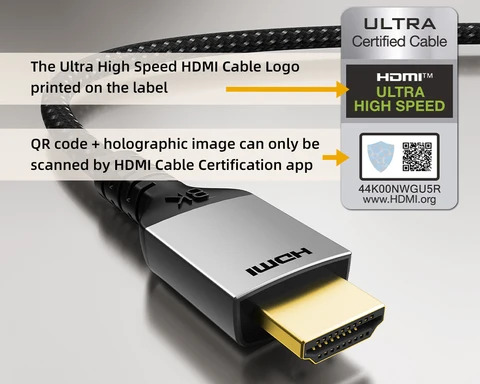
- Verify the label. Certified cables carry a label with a QR code that you can scan with the HDMI Licensing Administrator’s verification app. Uncertified cables sold with 4K claims may not meet the spec.
- Length matters. Longer passive copper cables are more likely to fail at high bandwidth. For long runs (often beyond about 5 m or 16 ft), consider an active or optical certified cable.
- Try a known-good cable. If a short certified cable fixes it, the old cable was the problem.
For the full buying guide, see which HDMI cable to buy for 4K 60 and 120 Hz.
Step 4: Check the Source Device’s Output
Streaming boxes, consoles and players don’t always output 4K automatically. Open the video or display settings on the device and confirm that the resolution is set to 4K (or “Auto”) and that HDR is enabled if you want it. Menu names vary, but you’ll typically find them under Display, Video or Screen and Video. Some devices run a short “test” to detect what your TV supports; if the test fails, they stay at a lower resolution. Fix the port, mode and cable first, then run the test again.
HDCP and “No Signal” Errors
Protected 4K content, such as streaming apps and discs, needs a copy-protection handshake called HDCP (4K typically needs HDCP 2.2). If any device in the chain doesn’t support it, such as an older receiver, splitter or capture card, you may get a black screen, a blinking picture or an error message, or the content may play only at a lower resolution. Try connecting the source directly to the TV. If 4K then works, the device in the middle is the weak link.
4K on a PC or Mac
- Stuck at 30 Hz. This usually means the port, cable or adapter is limiting bandwidth. Use an HDMI 2.0 (or newer) port or DisplayPort, a certified cable, and set the refresh rate to 60 Hz in the display settings.
- Blurry or colored-fringed text. TVs often use a processing mode that reduces text clarity. Switch the TV’s input to PC or Game mode, and make sure the PC outputs full color (4:4:4) rather than a reduced-color format.
- Everything looks tiny. 4K screens need operating-system scaling. See 4K scaling on Windows and Mac.
Bandwidth explains many PC problems. At 60 Hz, 4K with 8-bit full color fits within HDMI 2.0’s 18 Gbps limit, but 4K at 60 Hz with 10-bit full color needs roughly 22 Gbps of raw signalling, so older ports usually fall back to reduced color for HDR. HDMI 2.1 (48 Gbps) handles these signals and 4K at 120 Hz.
HDR Looks Wrong
- Enable HDR on both ends. The source device and the TV input both need HDR switched on, and the enhanced HDMI mode must be enabled.
- Use HDR content. Standard-range video won’t turn into HDR just because the setting is on.
- Dim or washed-out HDR. This can be an input setting, a picture mode that limits brightness, or the source mapping HDR incorrectly. Try the TV’s Cinema or Filmmaker picture mode, and test with a known HDR title.
- Sparkles only in HDR. That usually points to a cable that can’t sustain the higher bandwidth.
Is the Content Really 4K?
If the signal chain checks out, the issue may be the content. Not every title is available in 4K, streaming plans can limit quality, and many “4K” films are upscaled from lower-resolution masters. Read native vs upscaled 4K, then confirm your connection with our guide to internet speed for 4K streaming.
Frequently Asked Questions
Why is my 4K TV only showing 1080p?
Common causes are using a port that isn’t 4K-capable, the TV’s enhanced HDMI mode being off, a cable that can’t carry the signal, or the source device set to 1080p.
Why does my 4K TV have no signal?
Usually the wrong input, a loose cable or a failed handshake. Power-cycle the devices, reseat the cable and try another port.
Do all HDMI ports on my TV support 4K?
Not necessarily. Many TVs support the highest-bandwidth signals on only one or two ports. Check the labels or the manual.
Do I need a new HDMI cable for 4K?
Not always. Many certified High Speed cables already work for 4K at 60 Hz. You need an Ultra High Speed cable for the most demanding signals, such as 4K at 120 Hz.
Why does my 4K monitor only run at 30 Hz?
The port, cable or adapter doesn’t have the bandwidth, or 60 Hz isn’t selected. Use HDMI 2.0 or newer, or DisplayPort, with a certified cable.
Why does HDR look dim?
HDR may not be enabled at every step, the TV’s enhanced HDMI mode may be off, or the picture mode may be limiting brightness.
Is my TV broken if none of this works?
Probably not. Test the TV with another source and cable. If the same fault appears on every input, contact the manufacturer.
The Bottom Line
Treat 4K problems as a chain: source, cable, port, settings, content. Fix them in order, change one thing at a time, and test after each change. In most cases the answer is the right port, the right mode or a certified cable.
Keep reading: HDMI cable guide · Why 4K streaming looks bad · 4K resolution explained · Back to the 4K hub
Sources and Methodology
Bandwidth figures follow the HDMI Licensing Administrator’s published speeds (18 Gbps for HDMI 2.0 and 48 Gbps for HDMI 2.1; see hdmi.org). The roughly 22 Gbps figure for 4K at 60 Hz with 10-bit full color is calculated from the signal’s pixel clock. Menu names differ by brand and software version, so check your device’s manual. We have not tested every brand or model for this article.
